Description
Download Autoruns – startup manager, system utility, windows tool, pc optimization, registry editor, malware detection
Overview
Authoruns is a powerful system utility designed for Windows users seeking greater control over their computer’s startup processes. Developed by Microsoft, this tool provides a comprehensive view of all applications and processes configured to launch automatically during each Windows session. By revealing hidden startup entries in the Windows Registry, services, drivers, and browser extensions, Autoruns enables users to optimize system performance and enhance stability. The app is particularly valuable for advanced users, IT professionals, and anyone experiencing slow boot times or unexpected background activity.
It addresses real-world problems such as excessive startup delays, resource-heavy background processes, and potential security risks from unknown or malicious executables. The tool empowers users to identify and manage these entries with precision, improving both speed and security. While the developer did not provide additional technical details about its internal architecture or integration with other Windows components, its long-standing presence in the Microsoft ecosystem suggests reliability and compatibility with current and legacy Windows versions.
Real-world use cases include troubleshooting sluggish systems, removing unwanted programs that run at startup, and auditing system integrity for potential malware. In the broader app ecosystem, Autoruns fills a critical niche for system-level tools, offering functionality that is not available through standard Windows settings. Its free availability and direct development by Microsoft reinforce its credibility and utility in both personal and professional environments.
Key Features & Functionality
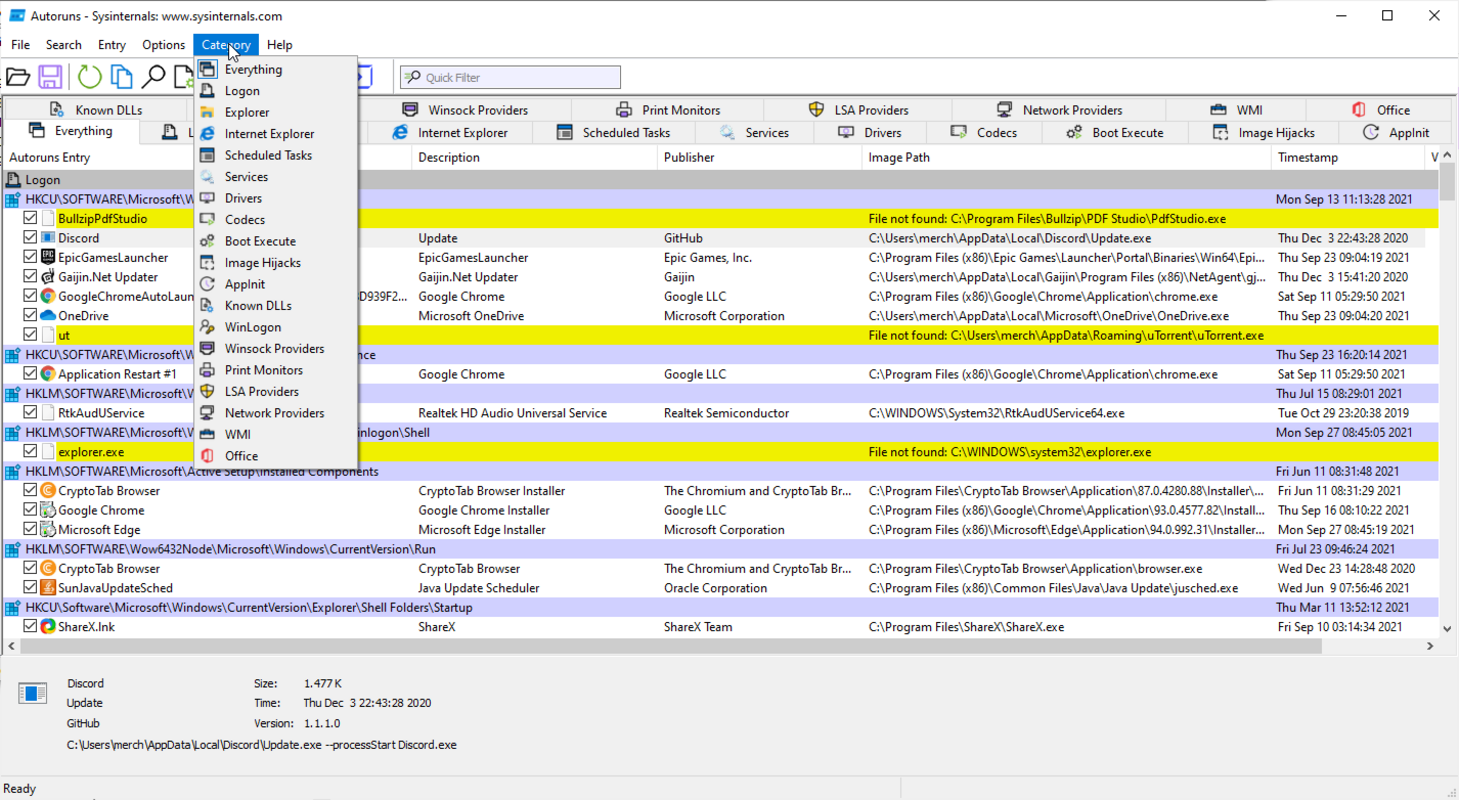
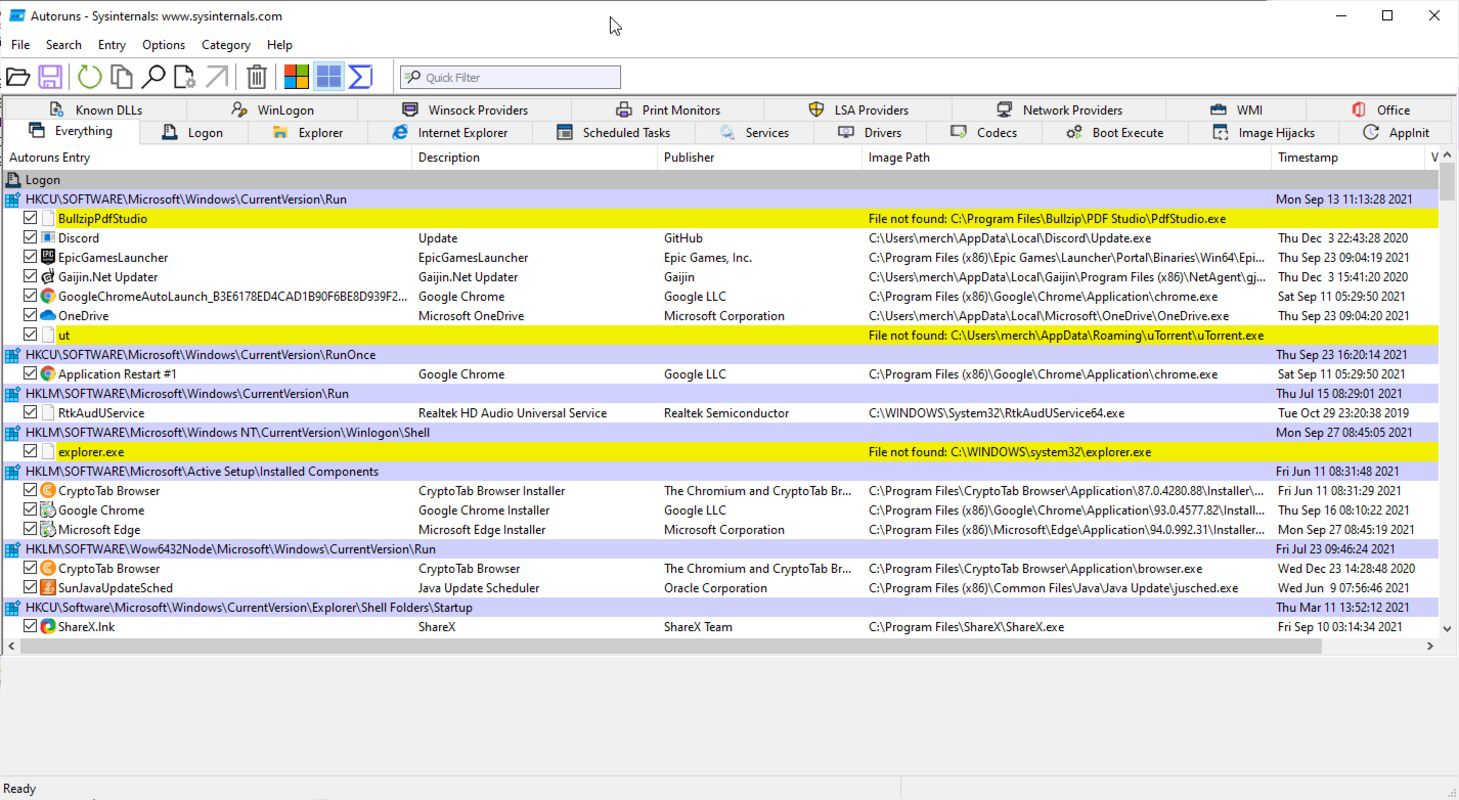
- Comprehensive Startup Program Management – Autoruns provides a detailed, real-time view of all startup entries across multiple categories, including Windows Registry keys, services, scheduled tasks, and browser extensions. This allows users to see exactly what runs at boot, enabling informed decisions about which entries to keep or disable.
- Selective Program Disabling – Users can disable specific startup items by removing their registry entries or service configurations. This prevents unwanted applications from launching automatically, reducing system load and improving boot speed without requiring full uninstallation.
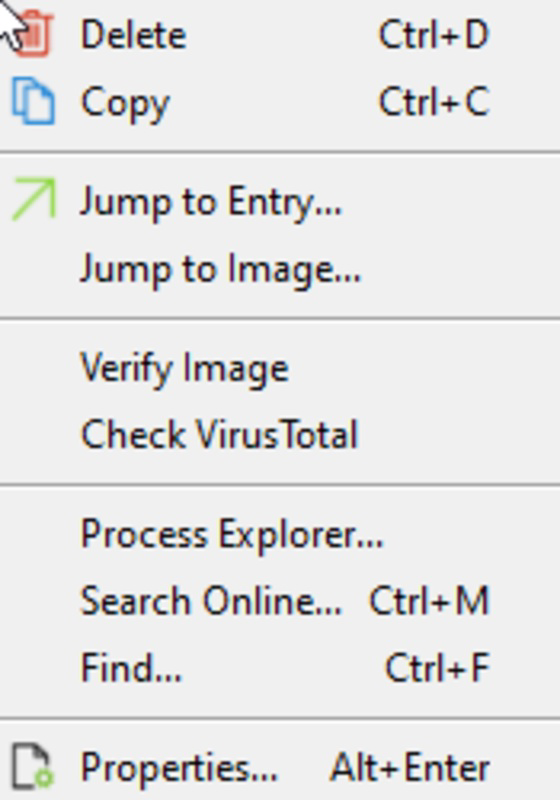
- Information Lookup for .exe Files – The tool integrates with web search engines to provide quick access to information about executable files. This helps users determine the legitimacy and purpose of unfamiliar .exe files, reducing the risk of enabling potentially harmful programs.
- Removal of Harmful .exe Files – Autoruns allows users to permanently delete executable files that are identified as problematic or malicious. This feature supports system cleanup and strengthens security by eliminating sources of instability or potential threats.
- Control Over Browser Extensions and Windows Explorer – Beyond startup programs, Autoruns enables inspection and management of browser add-ons and Windows Explorer add-ons. This gives users granular control over system behavior and customization options for their desktop environment.
For example, a user experiencing slow boot times can use Autoruns to identify a non-essential application launching at startup and disable it, resulting in a noticeable improvement in system responsiveness. Similarly, an IT administrator might use the tool to audit a networked machine for unauthorized startup entries, ensuring compliance and security.
Interface, UX & Performance
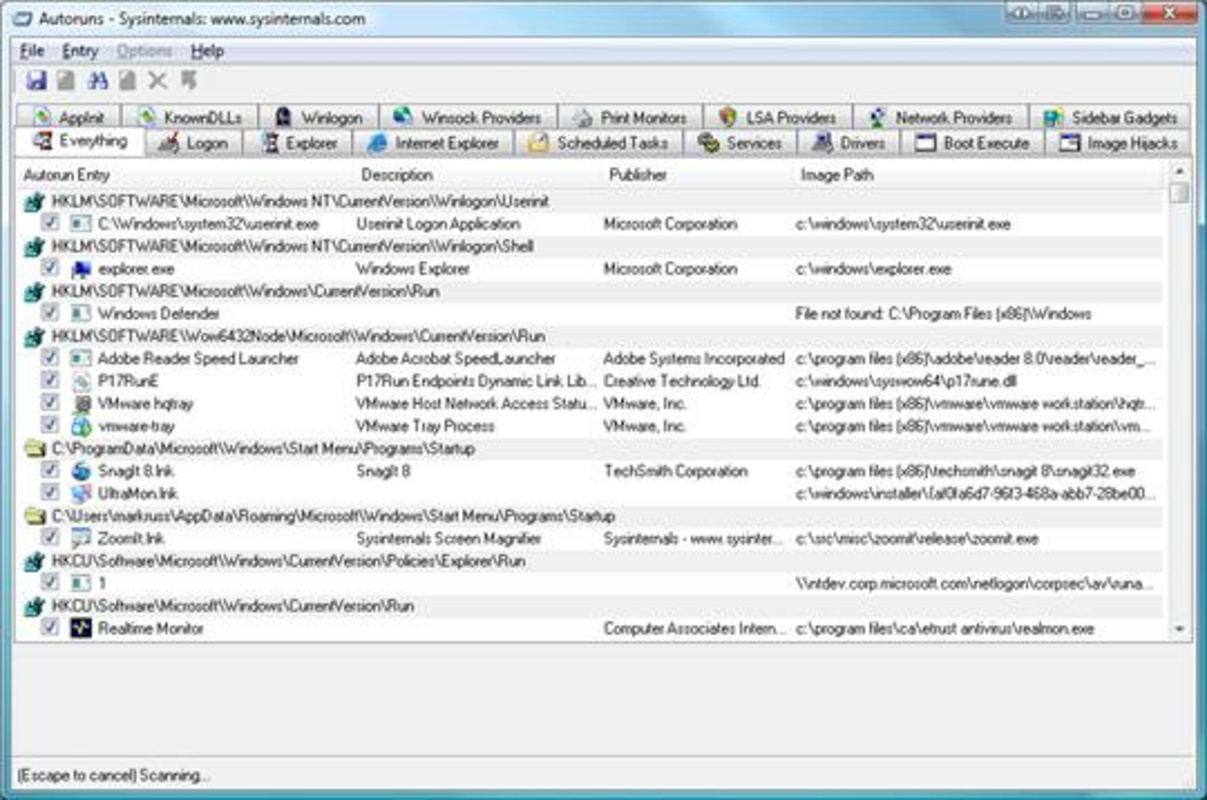
The interface of Autoruns is designed for functionality over aesthetics, reflecting its role as a system-level diagnostic tool. It presents data in a hierarchical, tabbed layout with clear categorization of startup entries. Navigation is linear and logical, allowing users to drill down into specific components such as services, scheduled tasks, or browser extensions. While the UI may appear complex to casual users, it is highly efficient for those familiar with Windows internals.
Responsiveness is consistent across device categories, with minimal lag during scanning and filtering operations. Although the developer did not list formal performance metrics, the tool’s lightweight footprint of 1.7 MB suggests optimized resource usage. Stability is maintained through direct integration with Windows system APIs, minimizing crashes or unexpected behavior during operation. The app runs without requiring installation, making it portable and suitable for use on multiple systems.
For users without advanced technical knowledge, the learning curve may be steep. However, the availability of documentation and community support helps mitigate this challenge. Overall, Autoruns delivers reliable performance and predictable behavior, making it a trusted tool in the Windows troubleshooting toolkit.
Platform Compatibility & Technical Requirements
Autoruns is designed exclusively for Windows operating systems. The current version, 13.00, is compatible with modern Windows platforms, though specific OS requirements were not listed. The application has a file size of 1.7 MB, making it lightweight and suitable for systems with limited storage. It is available as a standalone executable, meaning no installation is required—users can run it directly from a USB drive or local folder.
The developer did not specify minimum OS requirements or compatibility with older Windows versions. However, given its status as a Microsoft-developed tool, it is expected to function on Windows 7 and later, including Windows 10 and Windows 11. Compatibility with different device categories, such as desktops, laptops, and tablets, was not fully disclosed. Users are advised to test the tool in their environment to ensure proper functionality.
Pros and Cons
Pros
- Developed by Microsoft, ensuring reliability and trustworthiness
- Free to download and use, with no hidden costs
- Lightweight at only 1.7 MB, minimizing system impact
- Offers deep insight into startup processes not visible in standard Windows settings
- Portable—no installation required, ideal for temporary use or system recovery
Cons
- Interface may be intimidating for non-technical users
- No built-in update mechanism; users must manually check for new versions
- Specific OS compatibility details were not provided
- Advanced features require understanding of Windows Registry and system internals
- Limited visual feedback during operations, which may confuse beginners
FAQ
Is Autoruns safe to use on my Windows PC?
Autoruns is a legitimate tool developed by Microsoft. When used responsibly, it poses no risk to your system. However, modifying startup entries incorrectly can cause instability, so caution is advised.
Can I use Autoruns on Windows 10 or Windows 11?
Yes, Autoruns is compatible with Windows 10 and Windows 11. While specific version requirements were not listed, its official release by Microsoft indicates support for current Windows platforms.
Do I need to install Autoruns?
No. Autoruns is a portable application. You can run it directly from a folder or USB drive without installation.
How do I update Autoruns?
Updates are not automatic. Users must visit the official Microsoft website to download the latest version manually.
Can Autoruns detect malware?
Autoruns does not scan for malware directly. However, it helps identify suspicious startup entries, which can be investigated further using antivirus tools.
Final Thoughts
Autoruns stands out as a vital tool for anyone looking to take control of their Windows startup process. Its ability to reveal hidden entries, manage system behavior, and enhance performance makes it indispensable for power users and IT professionals. While its interface may not be beginner-friendly, the depth of insight it provides justifies its use in system optimization and security audits.
For users seeking a free, reliable, and lightweight system utility that delivers real results, Autoruns is a top-tier choice. Whether you're troubleshooting a sluggish PC or ensuring a secure boot environment, this tool offers unmatched functionality.
Download Autoruns now
Guides & Tutorials for Autoruns
How to install Autoruns
- Click the Preview / Download button above.
- Once redirected, accept the terms and click Install.
- Wait for the Autoruns download to finish on your device.
How to use Autoruns
This software is primarily used for its core features described above. Open the app after installation to explore its capabilities.
User Reviews for Autoruns 0
No reviews found